PaintAGame
Canvas guide

Paint a Game Canvas & Icon Search Guide

Choose a plot and load the right Roblox icon without relying on guessed catalog or control details.

Checked July 21, 2026Universe 10440766252
Quick answer

Start here

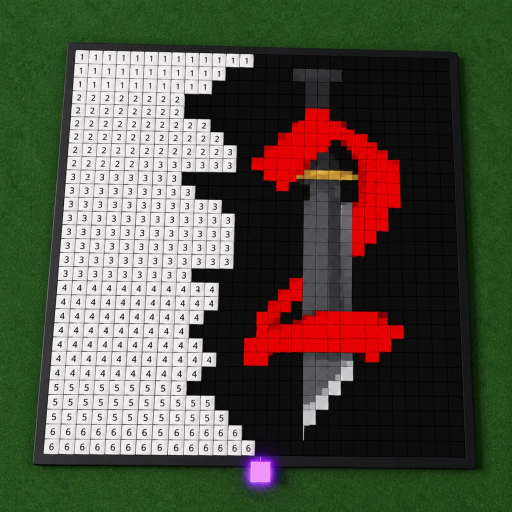
Claim an open plot, then use the experience’s search flow to find a Roblox game and load its icon as your canvas reference. If search fails, check the title and current UI; do not assume every Roblox icon is indexed or that button labels stay fixed.

Step-by-step

Follow the painting flow

The steps stay within the official description and the selected game identity. Button names can change, so use the matching in-game prompt rather than expecting a fixed label.

  1. 1

    Claim an available plot

    Look for the interaction offered at an unused plot. Use the prompt shown on your device; the current research does not support a universal key or button name.

  2. 2

    Search the current Roblox title

    Enter a recognizable experience name in the game’s icon search. If a title changed on Roblox, try its current spelling rather than an old alias.

  3. 3

    Confirm the reference before painting

    Check that the preview resembles the icon you intended to choose. Same-title Roblox games can exist, so visual confirmation matters.

  4. 4

    Break the image into regions

    Start with an edge, a large color block, or another easy landmark. Compare nearby cells frequently so a one-cell shift does not spread across the canvas.

  5. 5

    Record your own progress

    If you want a numeric checkpoint, count the total and completed cells yourself and use the local progress planner. It does not read the game or assume official dimensions.

If you're stuck

Common mistakes and safer checks

Using an old or partial game name

Try the exact current Roblox title and check the preview instead of assuming the first result is correct.

Treating a missing result as a permanent rule

Catalog coverage is not documented and may change. Record the checked date rather than claiming an icon can never be loaded.

Painting too large an area before checking

Use small landmarks and compare often; this reduces the cost of correcting an offset.

Known limits

What this guide does not claim

  • No complete searchable icon catalog is claimed.
  • No official icon difficulty or completion score exists in the selected sources.
  • No keyboard, mobile, or console control list is presented as fact.
  • Troubleshooting cannot guarantee that a particular icon becomes available.

PaintAGame is an independent fan guide, not Roblox or dilly dally games. Use the official experience for current UI and support.

FAQ

Questions players ask

How do I choose a picture in Paint a Game?

The official listing says to search for a Roblox game and load its icon onto your canvas. Use the current in-game search interface.

Why can’t I find an icon?

Check spelling, try the experience’s current Roblox title, and confirm the search interface is responsive. The public sources do not define catalog coverage.

How do I claim a canvas?

Claim an available plot using the visible in-game prompt. Exact button names and platform mappings have not been verified.

Are all icons the same difficulty?

No objective icon difficulty data was published. Choose based on what looks readable and manageable to you.

Next steps

Keep painting with the right reference